
You log into Snapchat, expecting to see where your friends are hanging out, but the map is either completely blank or showing hopelessly outdated information. Maybe your own Bitmoji is stuck at a location you left four hours ago. This happened recently to a user named Jake during a weekend meetup; he assumed the app was entirely broken when his avatar refused to move from his house.
When you are trying to coordinate with peers in real life, a frozen map is incredibly frustrating. It leaves you guessing whether the issue is a widespread server outage, a glitch on your specific phone, or just a buried privacy setting.
The reassuring news is that a broken Snap Map is rarely a permanent bug. More often than not, it comes down to a simple misconfiguration or a misunderstood feature. Instead of resorting to extreme measures, we are going to walk through the exact, tested steps to get your real-time location sharing functional again.
Step 1: Check Snapchat Server Status First
When Snap Map fails to load entirely, or the screen remains a gray grid, your first instinct might be to change your phone settings. However, the most efficient starting point is confirming whether Snapchat itself is down.
Snapchat relies on global servers to sync millions of real-time locations simultaneously. If those servers experience an outage, no amount of local troubleshooting will fix your map.
- Visit Downdetector: Open your browser and go to Downdetector.com (or a similar outage-tracking site) and search for Snapchat.
- Look for Spikes: If you see a massive, recent spike in user reports, the servers are struggling. .
- Check Social Media: Search for “#SnapchatDown” on X (formerly Twitter). Users are usually quick to report map loading errors.
If the servers are down, your only option is to wait. If the servers are operating normally, proceed to the next step.
Step 2: The Ghost Mode & Friend Settings Check
If the app is running smoothly but your friends are not appearing on the map, the most common real-world reason is completely intentional: Ghost Mode.
Ghost Mode is a privacy feature that hides a user’s location from everyone else on the platform. If your friends have this turned on, they will not show up on your map, period. Conversely, if you have it turned on and forgot, your friends cannot see you.
How to check your location sharing status:
1. Open Snapchat and navigate to the Map tab.
2. Tap the Settings gear icon in the top right corner of the map screen.
3. Look at the Ghost Mode toggle at the top of the menu.
4. If it is turned on (green), your location is hidden. Turn it off if you want to be seen.
When you disable Ghost Mode, the app will ask who you want to share your location with: My Friends, My Friends, Except…, or Only These Friends… Ensure you have selected the appropriate audience. If your friends are the ones missing, you may need to gently ask them if they accidentally left Ghost Mode enabled.
Step 3: Location Permissions Demystified
If you are certain Ghost Mode is off and the servers are fine, but your Bitmoji is still stranded in the wrong city, it is time to check your operating system’s permissions.
There is a common misunderstanding that you must grant Snapchat “Always Allow” location access for the map to work. This is actually false. Because Snap Map only updates when you have the app open on your screen (more on this in Step 6), setting your permission to “While Using the App” is perfectly fine and better for your privacy.
Here is how to ensure your permissions are correctly configured to allow the map to function when active:
For iOS (iPhone) Users:
1. Open your iPhone’s main Settings app.
2. Scroll down the list of apps and tap on Snapchat.
3. Tap on Location.
4. Select “While Using the App.”
5. Crucial Step: Ensure the Precise Location toggle is turned ON. If this is off, Snapchat can only see your approximate city, which causes your Bitmoji to jump around randomly or freeze in a broad area.
For Android Users:
1. Open your phone’s Settings and navigate to Apps (or App Management).
2. Find and select Snapchat.
3. Tap on Permissions, then select Location.
4. Choose “Allow only while using the app.”
5. Just like on iOS, make sure Use precise location is enabled.
Step 4: Battery Optimization and Low Power Mode Traps
Many users perfectly configure their permissions, only to find their map still freezing. The culprit is often battery-saving software.
When your phone battery dips, operating systems aggressively restrict apps from using power-heavy features like GPS.
Fixing this on iOS:
1. Go to Settings > Battery.
2. If Low Power Mode is on, turn it off while you are trying to coordinate locations.
Fixing this on Android:
Android devices, especially those with custom skins like Samsung or Xiaomi, have notorious battery optimization protocols that effectively put apps to sleep.
1. Navigate to Settings > Apps > Snapchat.
2. Scroll down to the Battery section.
3. Change the setting from “Optimized” to “Unrestricted.”
This prevents the Android system from cutting off Snapchat’s GPS access the moment you switch to another app .
Step 5: Clearing App Cache and Network Handshakes
Sometimes, the app simply gets confused by a backlog of old data or a dropped internet connection. Your phone relies on a combination of GPS, Wi-Fi, and cellular towers to pinpoint you. If you walk out of your house and lose Wi-Fi, the map might fail to hand over the tracking to your cellular data smoothly.
The Quick Network Reset:
Toggle Airplane Mode on for 10 seconds, then turn it off. This forces your phone to establish a fresh connection with the nearest cell towers.
Clearing the Snapchat Cache:
Corrupted temporary files (like old map tiles or cached Bitmoji data) can cause a blank interface. Clearing the cache forces the app to download fresh data.
1. Open Snapchat and tap your Bitmoji icon in the top left.
2. Tap the gear icon in the top right to open Settings.
3. Scroll down to “Account Actions.”
4. Tap “Clear Cache” and confirm. (Do not worry, this will not delete your memories, streaks, or messages).
Understanding the Core Issue: How Snap Map Actually Tracks You
To prevent future frustration, it is highly beneficial to understand the underlying mechanics of how this software operates.
Many users mistake Snap Map’s intentional design for a glitch. They wonder why their location appears frozen the moment they put their phone in their pocket. Snap Map is not a continuous, second-by-second tracking tool like Google Maps.
Experts and app developers note that Snap Map is designed to capture a “snapshot” of your location only during active usage sessions.
When you open the app and look at the screen, your phone requests your GPS coordinates and pings the server. Your Bitmoji moves to your current spot.
The moment you close the app or lock your screen, the tracking stops.
Your Bitmoji will remain at that exact location on your friends’ maps for several hours (usually up to 8 hours), or until you open the app again to trigger a new ping.
Understanding this passive tracking method resolves a lot of confusion. If you are walking to a meetup with your screen off, your friends will not see you moving down the street in real-time. The map is simply waiting for your next active session.
Advanced Fix: Change or Refresh Your Location with a Professional Tool
If you have tried all the steps above and your Snap Map is still not updating correctly, the issue may go beyond simple settings or temporary glitches. In some cases, users also want more control over how their location appears—whether for privacy, testing, or avoiding inaccurate GPS signals.
This is where a professional location tool like Fonelora Location Changer becomes useful.
Fonelora Location Changer allows you to modify or simulate your GPS location on your iPhone or Android device without physically moving. Instead of relying solely on unstable signals or app behavior, you can manually set a precise location and ensure Snap Map reflects it instantly.
Key Features of Fonelora Location Changer
- Instant Location Change
Teleport your GPS location anywhere in the world with just one click. - Stable Location Simulation
Prevent issues like location freezing or jumping caused by weak GPS signals. - Custom Route Movement
Simulate real movement between locations, making your Snap Map appear more natural. - No Jailbreak Required (iOS)
Safe and easy to use without modifying your device system. - Compatible with Social Apps
Works seamlessly with Snapchat, ensuring your Bitmoji updates as expected.
How to Use Fonelora Location Changer
- Connect Your Device: Download and launch the Fonelora Location Changer on your computer. Connect your Android phone via USB cable, Wi-Fi, or Bluetooth.
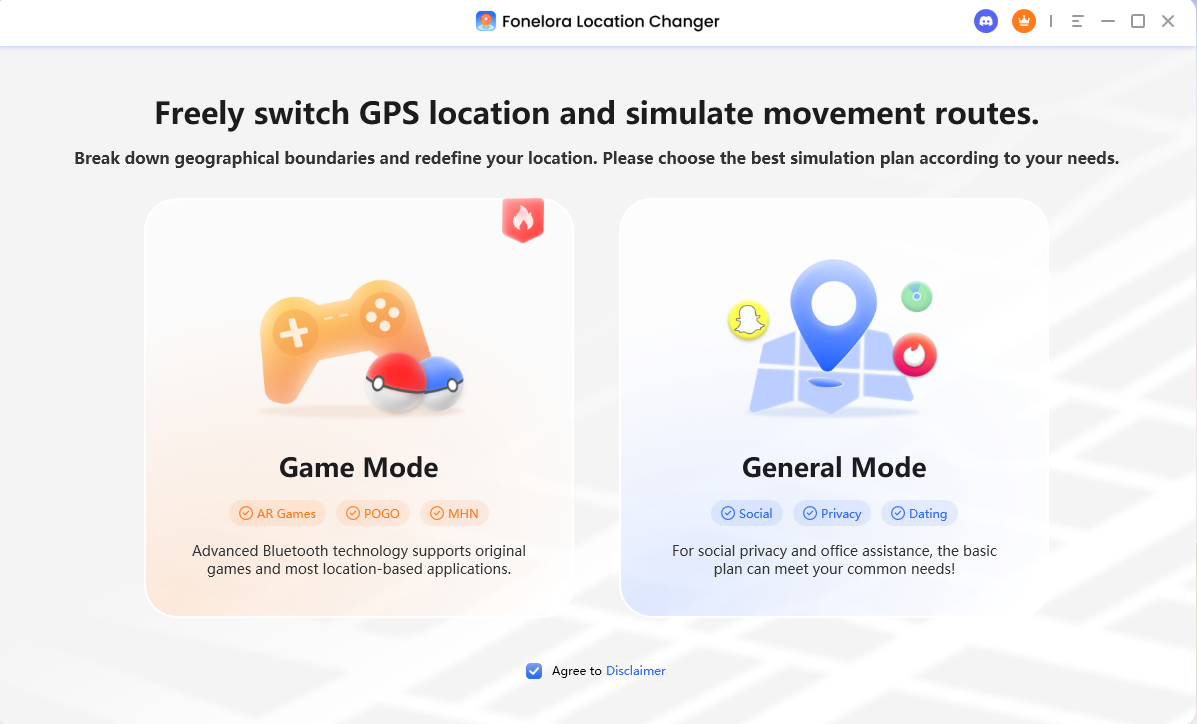
Connect Your Device
- Choose a Location Mode: Select Teleport Mode for instant travel, Joystick Mode for real-time 360-degree navigation, or Multi-Spot Mode to simulate natural walking routes.
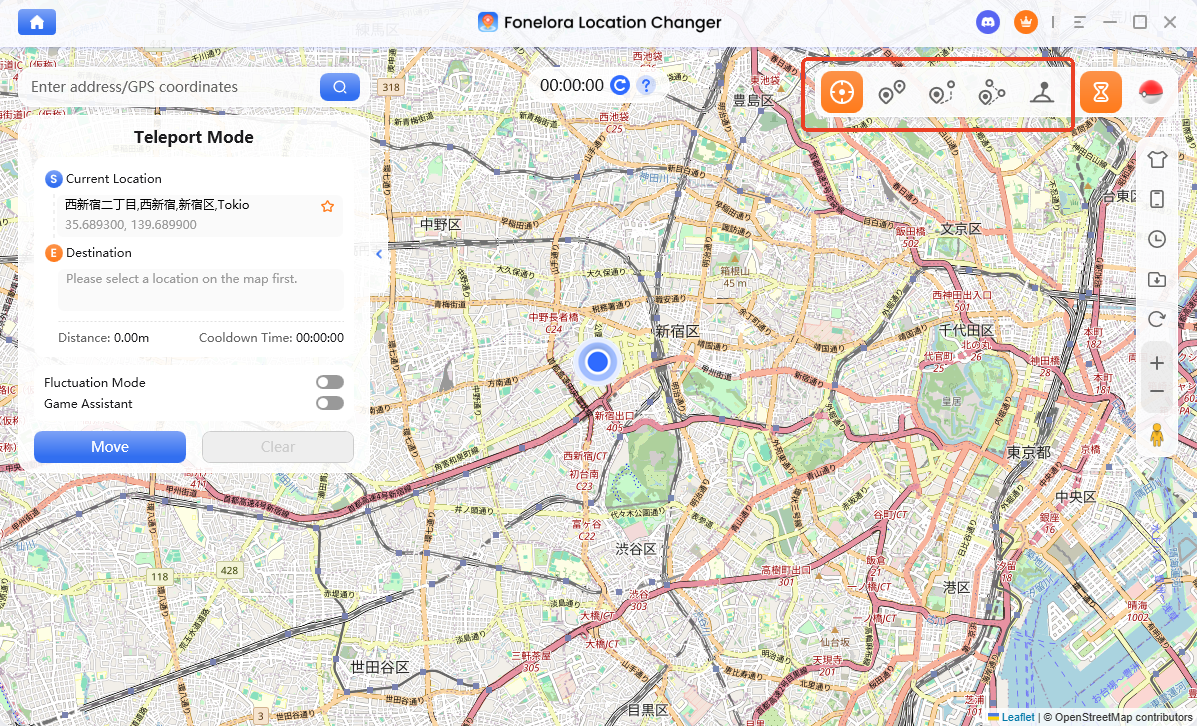
Select Your Mode
- Change Your GPS Location: Enter your target destination and click “Move.” Your phone’s entire GPS system will update securely across all applications.
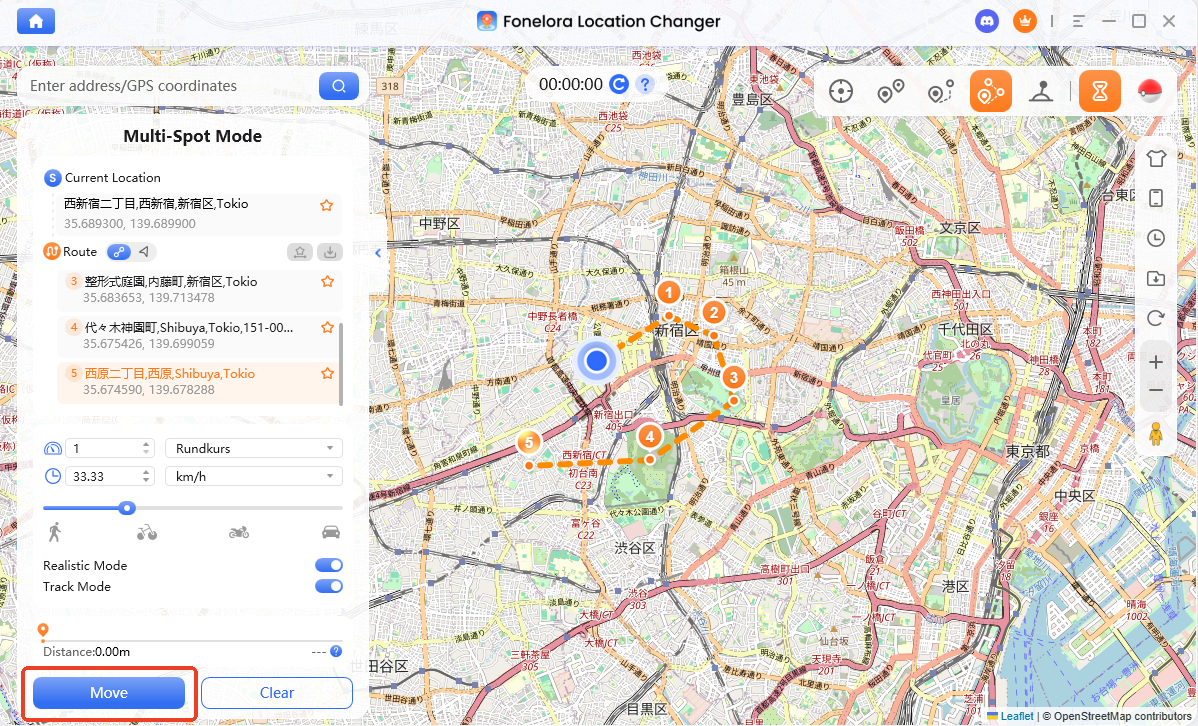
Change Location Instantly
Snapchat Map Troubleshooting: Frequently Asked Questions
Here are straightforward answers to the most common questions regarding location sharing issues.
Why is my Snap Map blank regarding friends?
If you can see the map but your friends are missing, they have likely enabled Ghost Mode. Alternatively, their phones might be turned off, or they have not opened the Snapchat application in over 8 hours, causing their avatars to expire and disappear from the map.
Does Snap Map update in real time?
It updates instantly only when the application is actively open on your screen. It does not track your movements continuously in the background.
Why does my location show me somewhere I was hours ago?
Because the app only updates when active, if you last checked Snapchat at a coffee shop three hours ago, your Bitmoji will stay at that coffee shop until you open the app again at your new destination.
Conclusion
Facing a broken map when you are trying to connect with friends does not have to ruin your plans. By checking Snapchat’s server status, ensuring Ghost Mode is appropriately configured, and verifying your precise location permissions, you can easily resolve the vast majority of loading errors. Remember that the app only tracks you during active sessions, and keeping an eye on your phone’s battery-saving modes will keep your real-time updates accurate. With these settings dialed in, you can confidently return to sharing your moments and navigating your social map without interruption.