A product guide can fail even when every sentence is correct. One screenshot may show the wrong button state. A device image may gain a port that does not exist. A cleaned diagram may turn tiny labels into confident nonsense. That is why an AI Photo Editor belongs in documentation only when the team can prove which visual facts survived the edit.
The PicEditor AI workflow is attractive for documentation teams because it reduces the work needed for background cleanup, object removal, image enhancement, and alternate sizes. The same generative flexibility can rebuild nearby pixels. The review therefore has to focus on the interface, device, and instruction being documented rather than on general visual quality.
Classify Every Image by Its Product Claim
Before uploading, label the asset as evidence, explanation, or decoration. Evidence shows an exact interface state, hardware configuration, error message, or result. Explanation adds arrows, highlights, or a controlled crop. Decoration establishes mood and can tolerate more visual interpretation. This classification sets the editing boundary.
Evidence Images Need Pixel-Level Restraint
A screenshot used in a setup guide must preserve button text, menu order, field values, version numbers, icons, and the state of each control. A hardware photograph must preserve port count, connector shape, labels, dimensions, and included parts. If the asset proves the instruction, generative cleanup should usually stay away from the product area.
Decorative Images Can Carry More Change
A blog hero or section divider may accept a replaced background, restyled scene, or removed desk clutter. Keep logos and product geometry fixed, and make sure the image is not positioned as a literal screenshot or specification. The caption and placement should match its illustrative role.
A third category deserves its own rule: redacted evidence. Removing an email address, account token, serial number, or customer name is a safety edit, but the surrounding interface still needs to remain exact. Prefer a conventional solid redaction when policy allows it. If generative removal is used, verify that the tool did not rebuild a plausible but false value in the same place.
Write Every Prompt Around Fixed Interface Invariants
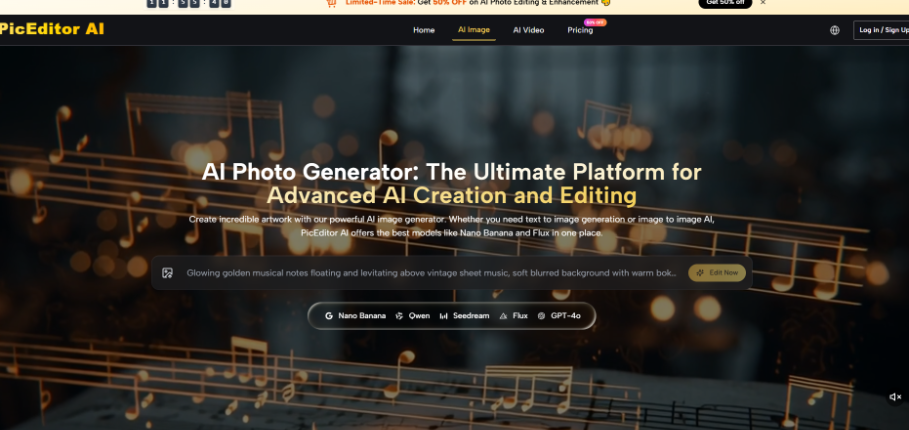
The Photo Editing Tool lets the user upload a reference, write a prompt of up to 5000 characters, set Image Size and resolution, choose one to four results, and generate. A documentation prompt should specify the edit and the exact product facts that must not move.
For example: “Remove the personal email notification from the upper-right corner. Keep the application name, version number, navigation labels, open Settings panel, toggle position, button text, cursor, and window size unchanged.” This is far safer than “make the screenshot clean and professional.” The first request creates a checklist; the second creates a new interpretation.
Do not combine redaction, relabelling, recolouring, and layout changes in the same request. If the result is wrong, the reviewer will not know which instruction caused the problem. Complete the privacy change first, compare it, and save the approved copy. Add arrows or highlights later in a normal layout layer so they stay editable when the product moves a control in the next release.
Protect Text States and Spatial Relationships
Readers navigate by relative position. If a generated edit moves a button, changes a tab label, or replaces an error code, the written step may point to the wrong place. Compare the edited image beside the source and read every visible word. Reject the output when text becomes unreadable or a control no longer matches the described state.
Run the Image Through the Real Guide
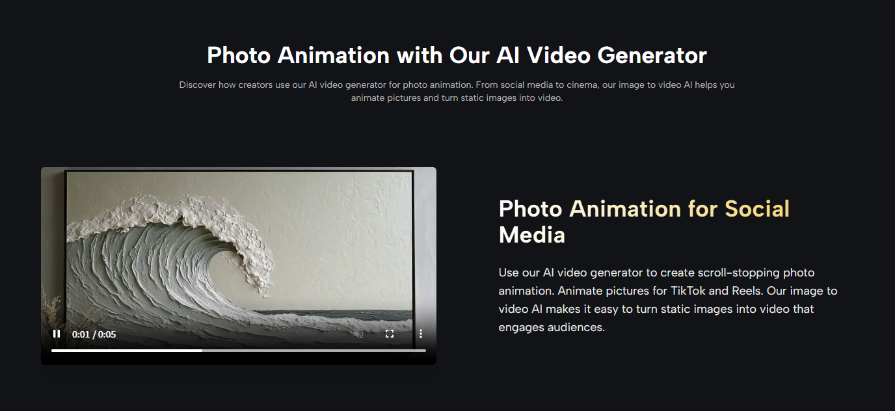
An image can pass at full resolution and fail in the published document. Responsive layouts shrink screenshots, knowledge bases apply compression, and dark mode can hide a border that looked clear on white. The review needs the destination, not only the export.
| Asset type | Pass signal | Immediate rejection |
|---|---|---|
| UI screenshot | Labels, values, and control states match the source | Any text or button position changes |
| Device photo | Ports, controls, proportions, and markings remain exact | An object, connector, or indicator appears or disappears |
| Process diagram | Arrows and node labels keep the intended sequence | A route, label, or dependency is invented |
| Article hero | Product identity remains recognisable | The illustration looks like unsupported product evidence |
This destination test should include the smallest supported viewport and a larger desktop view. It should also include the exported PDF if customers print or download the guide. A thin callout line may vanish after compression; a repaired region may look fine on mobile but reveal a warped edge on a large monitor.
Translation creates another pressure point. A screenshot that embeds English text cannot simply be regenerated with another language and treated as the same interface. The software may use different labels, line breaks, and control widths in the localised build. Capture the actual language version when possible. When a translated illustration is unavoidable, label it as an illustration and have a native reviewer check every visible string.
Check the Instruction and Image Together
Ask a reviewer who did not create the asset to follow the step using the current product. If the person clicks the wrong control because of the image, the guide fails even when the screenshot is attractive. This is an observable test, not a style preference.
Keep an Edit Record with Each Asset
When an AI Photo Edit enters the documentation repository, store the source filename, requested change, generated filename, reviewer, product version, and approved destinations. The record can be short. Its purpose is to show why the file exists and when it should be replaced.
Rejected outputs are useful when they carry specific notes such as “port invented,” “toggle label changed,” or “arrow reversed.” Those examples make the next review faster and prevent rework. They also show why a version that looked fine in isolation never cleared documentation QA.
Public Visibility is a visible control in the Photo Editing Tool. Treat it as part of the upload gate when the asset contains an unreleased interface, internal hostname, account information, customer data, or confidential hardware. A plan that offers private generation may be relevant, but the company still needs its own data-handling approval.
Version the asset with the guide rather than in a general image folder. When the product changes, a search for the old version number should reveal both text and pictures that need review. PicEditor AI can help prepare the replacement visual, but it cannot know whether an old button, deprecated field, or changed port still supports the current instruction.
Finally, keep exact text outside the generated image whenever the design permits. Page titles, callout labels, step numbers, and arrows are easier to edit, translate, and audit as document elements. Let the image carry the product view; let the publishing system carry the wording. That separation reduces the chance that a tiny generated typo survives several review rounds.
Edit the Presentation Without Editing the Product
Documentation teams can use PicEditor AI for controlled crops, background cleanup, alternate formats, and illustrative visuals. The tool should not silently repair the product state that readers are trying to understand.
The line is practical: if the image proves a claim, preserve its facts; if it explains a step, preserve its labels and sequence; if it decorates the page, label it by context. That keeps visual polish from becoming a support ticket.