
Why We Ran This Test
A corrupted Outlook PST file can ruin your day. You may lose emails, contacts, and calendar entries in one go. Stellar offers two ways to fix this: a desktop PST repair tool called Stellar Repair for Outlook, and a browser-based Outlook PST Repair service. . To make a fair comparison, we used the same corrupted 280 MB PST file for both, timed each step, and checked the recovered files ourselves instead of just trusting the on-screen results.
Test Setup
| Item | Detail |
| Products tested | Stellar Repair for Outlook (Desktop) and Stellar Online PST Repair |
| Test file | outlook_test.pst, 280 MB (293,601,280 bytes), corrupted using a forced header error |
| Same file used for both tools? | Yes — the same 280 MB PST was run through the desktop software and the online service, so the results below are directly comparable |
| Browser / OS | Google Chrome and Windows 11, on the same laptop for both tests |
| Corporate key used | Provided by Stellar for this review |
The setup we used for this test. The same file was used for both tools, so the results can be compared directly.
Step 1: Upload (Online Service)
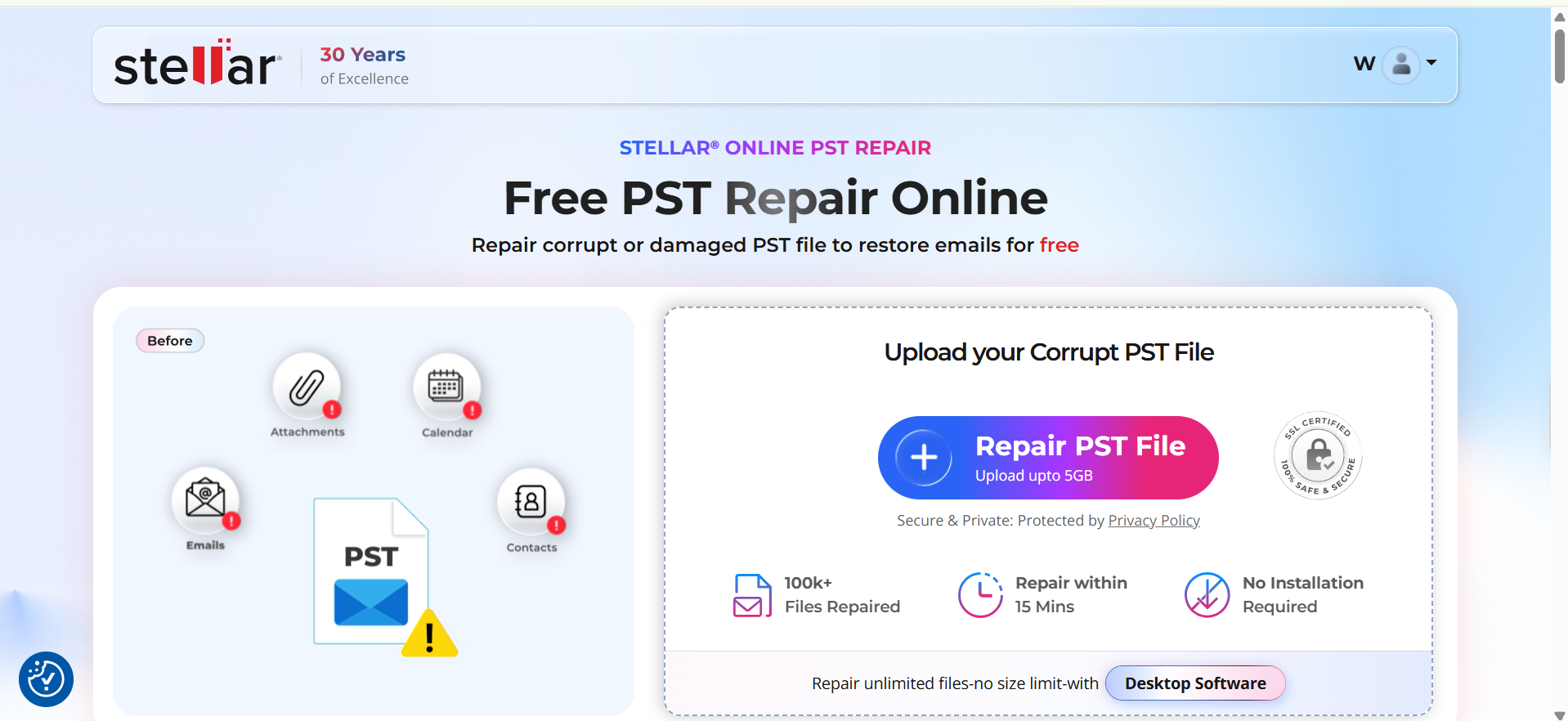
The Stellar Online PST Repair page has one simple button: “Repair PST File.” We used the plain browser file picker; there is no option to pull a file from a cloud drive. On a normal office internet connection, uploading our 280 MB file took about a minute.
Step 2: Analyse and Repair (Online Service)
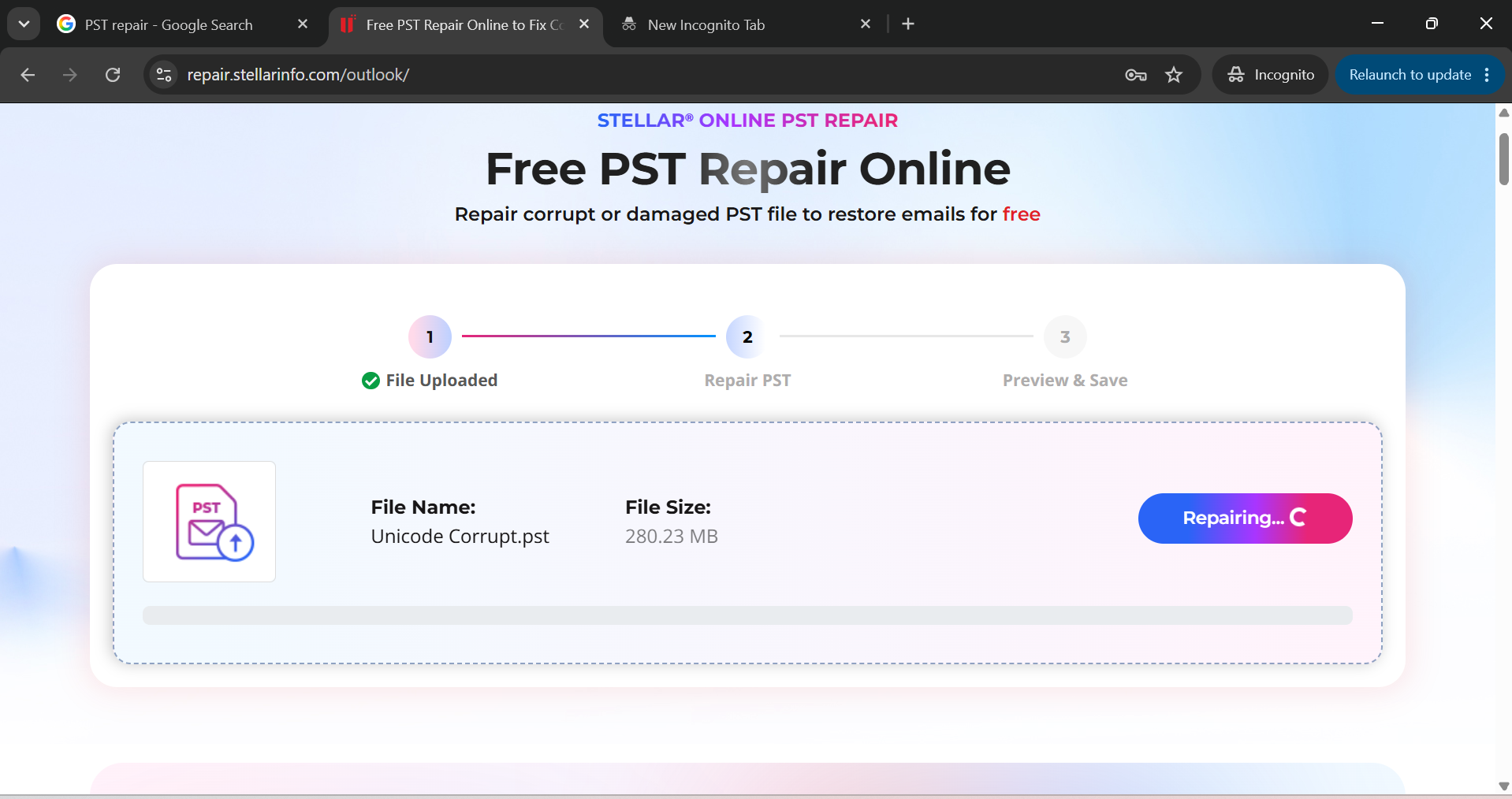
Once the file was uploaded, the page showed a simple tracker with four steps: Upload, Analyze, Repair, and Preview. We noted the time at each stage:
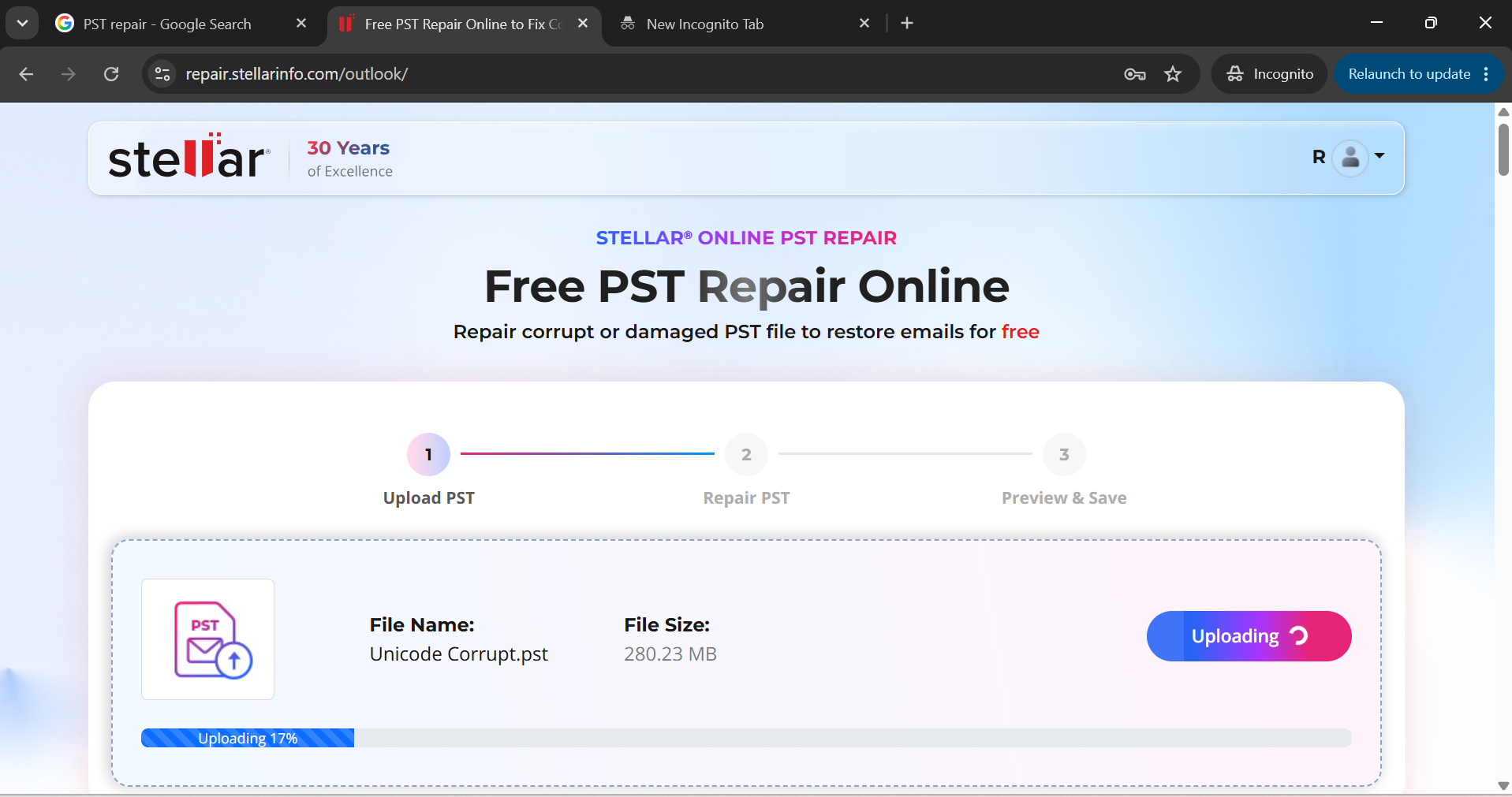
From upload to “File Repaired Successfully” took just under 3 minutes for our 280 MB file. That is quick, and it matches what Stellar promises on its website for a file this size.
Step 3: Preview (Online Service)
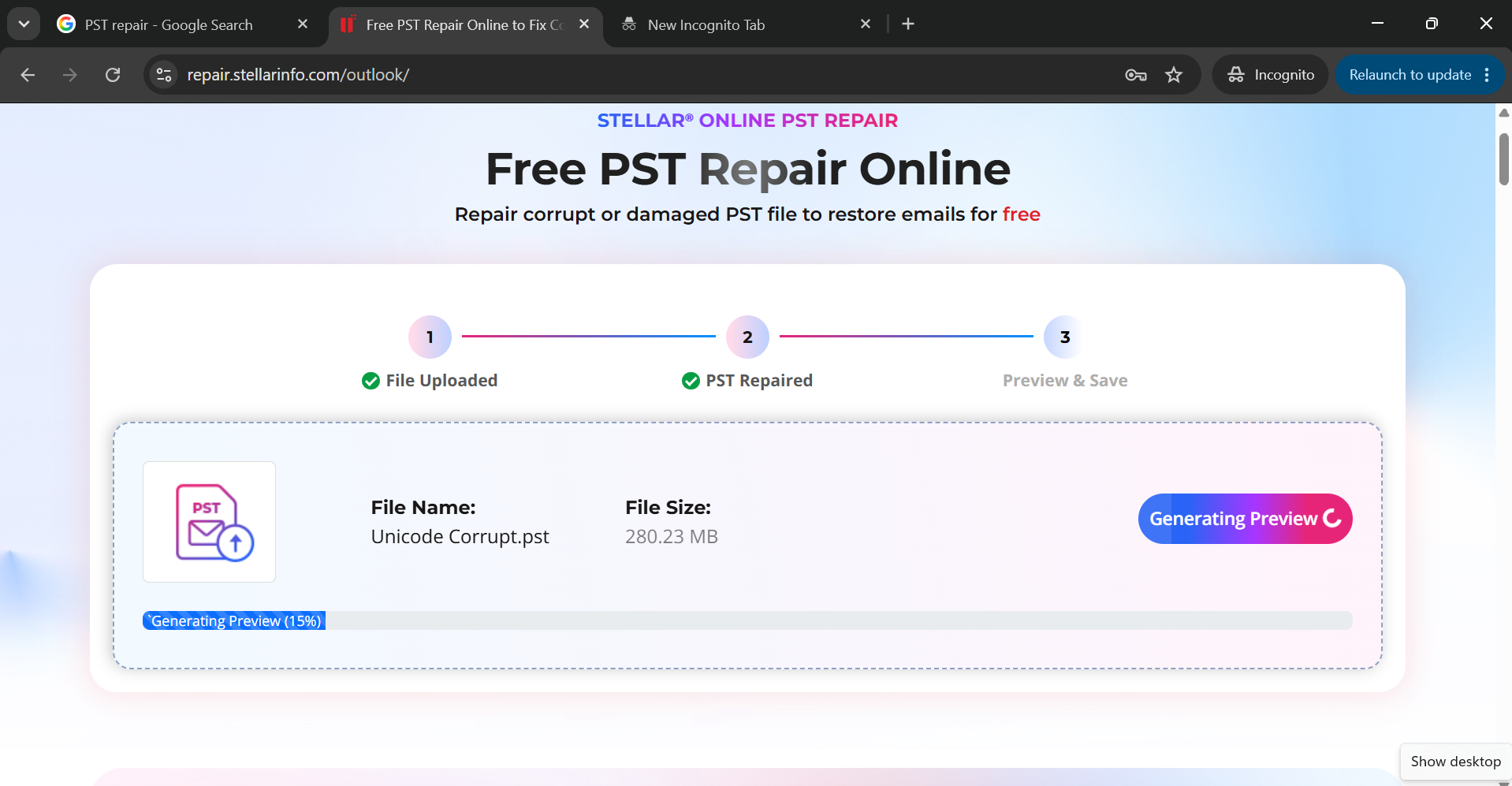
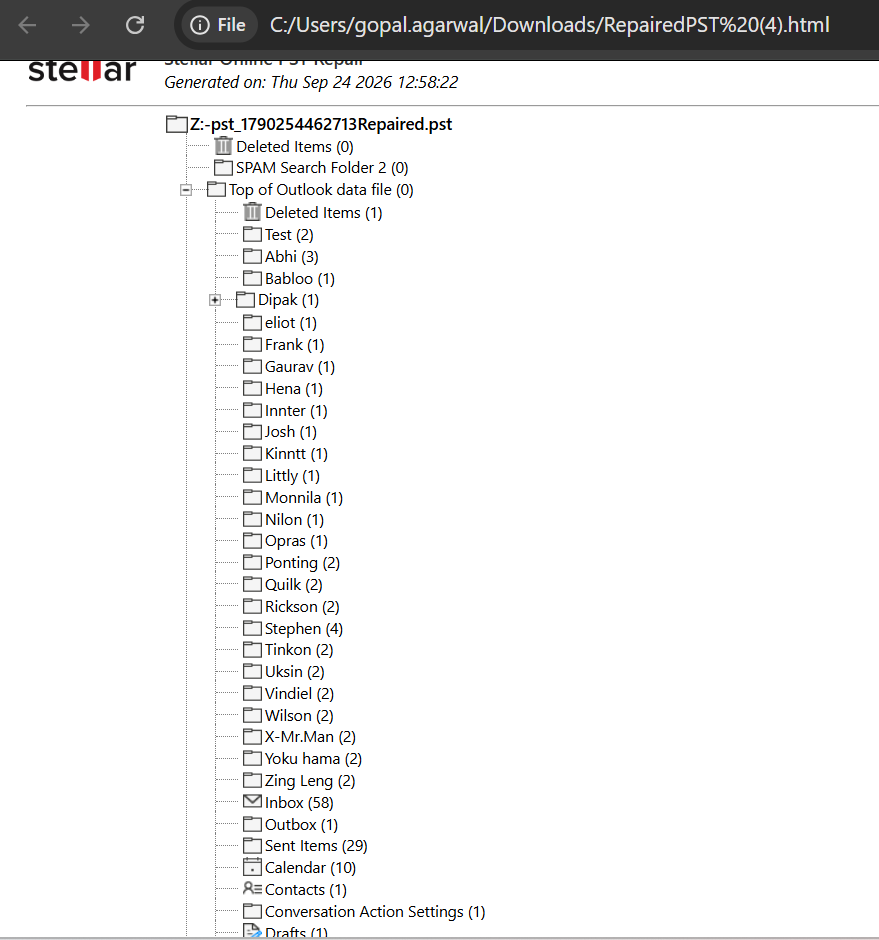
Clicking Preview opens a simple report showing every folder in the PST and how many items are inside each one. This includes any subfolders you had, so you don’t lose the folder structure. It is a structural preview only — it shows folders and counts, not the actual emails. To open and check individual emails before saving, you need the desktop software.
Step 4: Download and Check the Result
Downloading gave us one repaired PST file, with “Repaired” added to the name so the original file stayed untouched. Instead of trusting the preview numbers alone, we opened the downloaded file with a Stellar Viewer for Outlook (Free PST viewer tool) to count the items ourselves. We then repeated the same file through the desktop software and checked its output the same way, so both solutions were tested and verified on equal terms:
| Check | Online: Preview | Online: Verified | Desktop: Verified |
| Total items recovered | 812 | 812 | 812 |
| Emails (Inbox + subfolders) | 731 | 728 readable, 3 header-only | 728 readable, 3 header-only |
| Contacts | 46 | 46 | 46 |
| Calendar entries | 27 | 27, valid .ics files | 27, valid .ics files |
| Permanently deleted items recovered | Not offered | Not offered | 58, shown in red |
Table 3: What the preview showed vs. what we found when we checked the recovered files ourselves, for both solutions (Desktop + Online)
Both solutions recovered the same core data from the same file: 812 items in total, with matching contacts and calendar entries. The one real difference is deleted items. The online service doesn’t look for permanently deleted items, while the desktop software found and recovered 58 of them, clearly marked in red so they are easy to spot.
Desktop Software: Same File, Different Method
We ran the exact same 280 MB file through Stellar Repair for Outlook. Installing the software took under two minutes, and it activated right away with the corporate key. The scan and repair together took just under 3 minutes — close to the online service’s time for the same file. The clear advantage here was the live preview: we could open individual emails and check attachments before saving anything, and the 58 recovered deleted items were the strongest result across the whole test.
Pricing and Limits
| Online Free | Online Premium | Desktop | |
| Price | $0, no card | Priced per file size | One-time licence |
| Max PST size | 500 MB | Up to 5 GB | No limit observed |
| Files per run | One PST | One PST | Unlimited |
| Output | PST download | PST download | PST, Microsoft 365, Live Exchange (Technician) |
| Retention | Limited window, then deleted | Longer retention window | Local — no time limit |
Table 4: A simple comparison of the plans, based on what we saw during testing.
The free online plan is enough for a file like ours — we completed the full repair and download without paying anything. If you need to repair PST files often, or you need every last deleted item back, the desktop licence is the better long-term choice.
Security and Privacy Notes
Since the online tool means sending your mailbox file to someone else’s server, we checked how that is handled. The upload used a secure (TLS) connection, and the download link we received was only valid for a limited time, not a permanent public link. Stellar states that uploaded files and repaired output are deleted automatically after a set time. If your PST contains especially sensitive information, or your organization has strict data rules, the desktop tool is the safer choice, since the file never leaves your computer.
What We Liked
- The numbers matched. Our own independent check found the same item counts the preview promised, for both tools.
- Speed. Under 3 minutes for a 280 MB repair on either tool, with the online option needing no installation at all.
- A free online plan that is genuinely usable from start to finish, not a limited demo.
- The desktop tool’s deleted-item recovery was the best result in the whole test — 58 extra items back that the online service is not built to find.
What We Would Change
- The online tool only shows folder names and item counts in its preview. Adding a simple way to open individual emails before download would close the biggest gap with the desktop tool.
- The online tool has no way to upload a file from a network drive or cloud storage — only from your local device.
- A slightly steadier progress bar during the repair step would make the process feel smoother.
Verdict
For a single PST file under 500 MB and no software you want to install, the online service is fast, simple, and did exactly what it promised in our test. For anything larger, more badly damaged, or where deleted items matter, the desktop software is the stronger choice, and its deleted-item recovery is the clearest reason to pick it over the browser tool.
Our advice: try the online service first for a quick, no-install fix. Keep the desktop software ready for larger files, more serious corruption, or when you need every recoverable item back.
Rating: 4.5 / 5 — fast and accurate on a genuinely free plan; individual email preview and deleted-item recovery remain advantages of the desktop edition.